
gAIa isn't just a map — you can have a real conversation with it. (If you're just arriving, start with Part 1: Getting Around the gAIa Map, then read Part 2: Reading a Tree's Details Panel.)
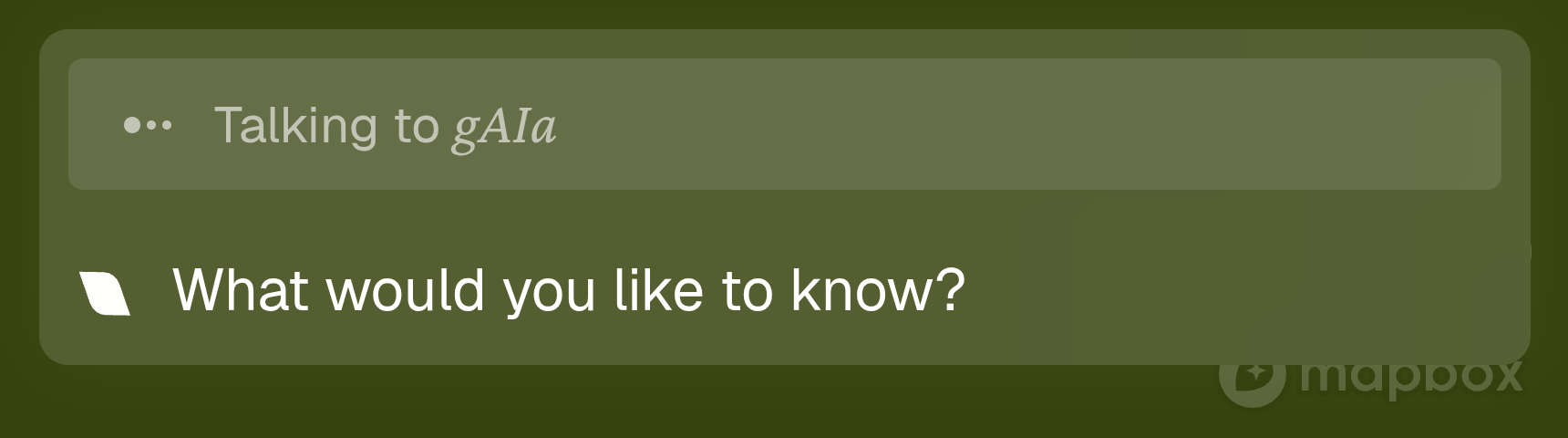
Starting a conversation
 The green gAIa bubble opens the chat. You can talk at three levels:
- a single tree — ask about its health, age, or history;
- a mini-forest — ask about a whole community of trees at once;
- gAIa — ask about nature and the wider ecosystem as a whole.
A small icon shows who you're talking to — a single tree  or a mini-forest
  .
.
Not sure what to ask? Tap a suggestion like "Find nearby trees needing water" or "See sequestered carbon" to get going.
Chat controls
⤢ Expand / shrink — make the chat full-screen for a longer read, then bring it back down.
📷 Camera — share a photo with gAIa, for example to ask about a leaf or a sign of disease.
Where your things are saved
Open the Menu (top-left) to find everything you've collected:
- Favourite Trees — the trees and mini-forests you've hearted.
- Added Trees — trees you've contributed to the map.
- Previous Chats — every conversation, searchable, with your starred ones kept handy.
- Settings — switch language (English or Nederlands) and manage your profile.
That's the whole tour. Open the map, tap a tree, and say hello — gAIa is listening.